




































What To Look for in a Laptop Cooling Pad

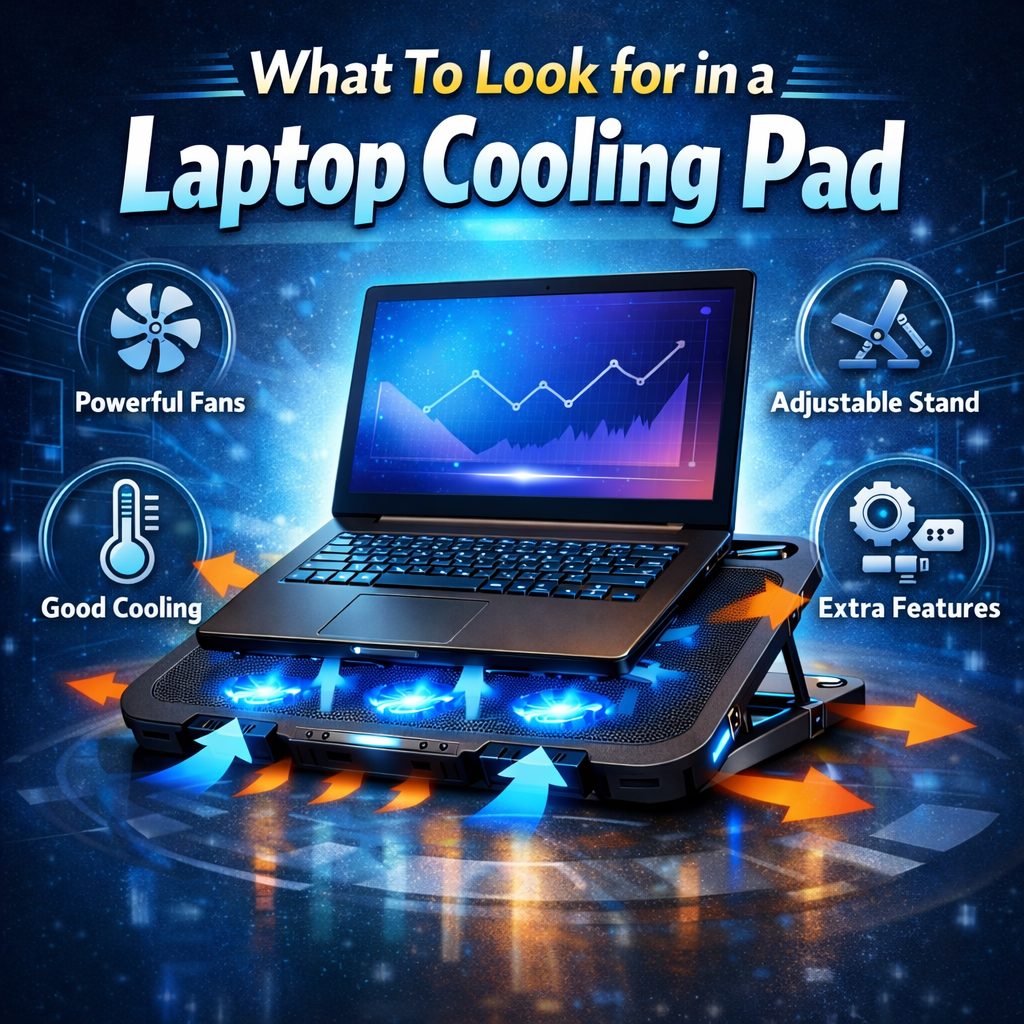
Laptop Cooling Pads are essential for keeping your laptop running smoothly, especially during heavy use. When choosing one, consider these factors:
Cooling Method: Most use fans, which are effective. Some use a combination of fans and a heat sink.
Size and Compatibility: Ensure the pad fits your laptop’s size. Check the dimensions and consider the fan placement.
Fan Noise: Some fans can be noisy. Look for pads with quiet fans, especially if you work in a quiet environment.
Ergonomics: Some pads have adjustable heights for better typing and viewing angles.
Features: Extra USB ports can be handy. Also, consider the build quality and materials.
Fast Charging vs Normal Charging: What’s Better for Your Phone?
Fast charging has become a standard feature on most smartphones, but is it better than normal charging? Here’s a quick comparison:
Speed: Fast charging significantly reduces charging time, which is a major advantage.
Heat: Fast charging can generate more heat, potentially affecting battery health over time. Modern phones have safety features to manage this.
Convenience: Fast charging is great for quick top-ups, while normal charging is fine for overnight charging.
Battery Health: Both charging methods can affect battery health. Fast charging might degrade the battery slightly faster, but the difference is often negligible with modern phones.
Ultimately, both methods are safe. Fast charging offers convenience, but consider using normal charging if you want to slightly extend your battery’s lifespan.
Best Phone Holders for Cars in 2025
JOYROOM JR-ZS05: The Best Car Phone Holder in 2025
Looking for a reliable car phone holder? The JOYROOM JR-ZS05 Magic Series Magnetic Car Holder in black is a top contender. Here’s why:
Strong Magnet: It uses a powerful magnet to securely hold your phone, even on bumpy roads.
Easy Installation: It’s simple to install, whether you prefer the air vent or dashboard mount.
360-Degree Rotation: You can easily adjust the viewing angle for optimal visibility.
Sleek Design: The black finish looks great in any car interior.
Compatibility: It works with most smartphones.
Overall, the JOYROOM JR-ZS05 offers a great combination of security, convenience, and style.
Best Type-C Chargers Under Rs. 1500 in Pakistan
We XIAOMI 120W Charger: The Best Under 1500?
Looking for a fast and reliable charger without breaking the bank? The XIAOMI 120W EU PLUG QC3.0 FAST QUICK WALL CHARGER might be the perfect choice. Here’s why:
Super Fast Charging: It delivers up to 120W of power, charging your devices incredibly quickly.
QC3.0 Compatibility: It supports Quick Charge 3.0, ensuring compatibility with a wide range of devices.
Type-C to C Cable: It comes with a Type-C to C cable, making it ready to use right out of the box.
EU Plug: Designed for European outlets.
Affordable: It’s available for under 1500, offering great value for its performance.
If you need a fast charger, this XIAOMI model is worth considering.
How to Connect a Wireless Keyboard to Your Laptop
Connecting Your Wireless Keyboard: A Simple Guide
Setting up a wireless keyboard is a breeze! Here’s how to get it connected to your laptop:
- Check the Basics:
Batteries: Make sure your keyboard has fresh batteries.Power Switch: Turn on the keyboard. There’s usually a switch on the side or bottom. - Bluetooth Connection (Most Common):
Enable Bluetooth: On your laptop, go to Settings > Devices > Bluetooth & other devices. Make sure Bluetooth is turned on.Pair Your Keyboard: Put your keyboard in pairing mode. This usually involves pressing a button on the keyboard (often labeled “Connect” or with a Bluetooth symbol). Your laptop should then find the keyboard. Select it from the list of available devices. You might need to enter a code that appears on your screen. - USB Receiver (Less Common):
Plug In: If your keyboard uses a USB receiver, plug it into a USB port on your laptop.Automatic Setup: The keyboard should automatically connect. If not, you might need to install drivers (software) from the manufacturer’s website. Once connected, test the keyboard by typing. If it works, you’re all set!
How to Set Up a USB Hub and Why You Need One
Setting Up a USB Hub: Expand Your Connectivity
Do you find yourself constantly unplugging and replunging USB devices? A USB hub can be a lifesaver, expanding the number of USB ports on your computer. Here’s how to set one up and why you might need one:
What is a USB Hub?
A USB hub is a small device that adds extra USB ports to your computer. It connects to your computer via a single USB cable and then provides multiple ports for you to connect other devices.
Why Do You Need a USB Hub?
- Expand Ports: Modern laptops often have limited USB ports. A hub gives you more options.
- Convenience: Easily connect multiple devices like a mouse, keyboard, external hard drive, and printer simultaneously.
- Organization: Keeps your desk tidy by centralizing connections.
- Device Compatibility: Some older computers may have issues with newer USB devices, and a hub can help.
Setting Up Your USB Hub
- Choose Your Hub: Decide on the number of ports you need (4, 7, or more) and whether you need USB 3.0 for faster data transfer.
- Plug It In: Connect the hub to your computer’s USB port.
- Connect Your Devices: Plug your devices into the hub’s ports.
- Power (If Needed): Some hubs are powered, meaning they have their own power supply. This is helpful for power-hungry devices like external hard drives. Plug in the power adapter if your hub has one.
- Install Drivers (Rarely): Most hubs are plug-and-play, meaning they work automatically. If you have issues, check the manufacturer’s website for drivers.
Types of USB Hubs:
- USB 2.0: Suitable for devices like mice and keyboards.
- USB 3.0 (and higher): Offers faster data transfer speeds, ideal for external hard drives and other devices.
- Powered Hubs: Provide their own power, which is essential for devices that need more power.